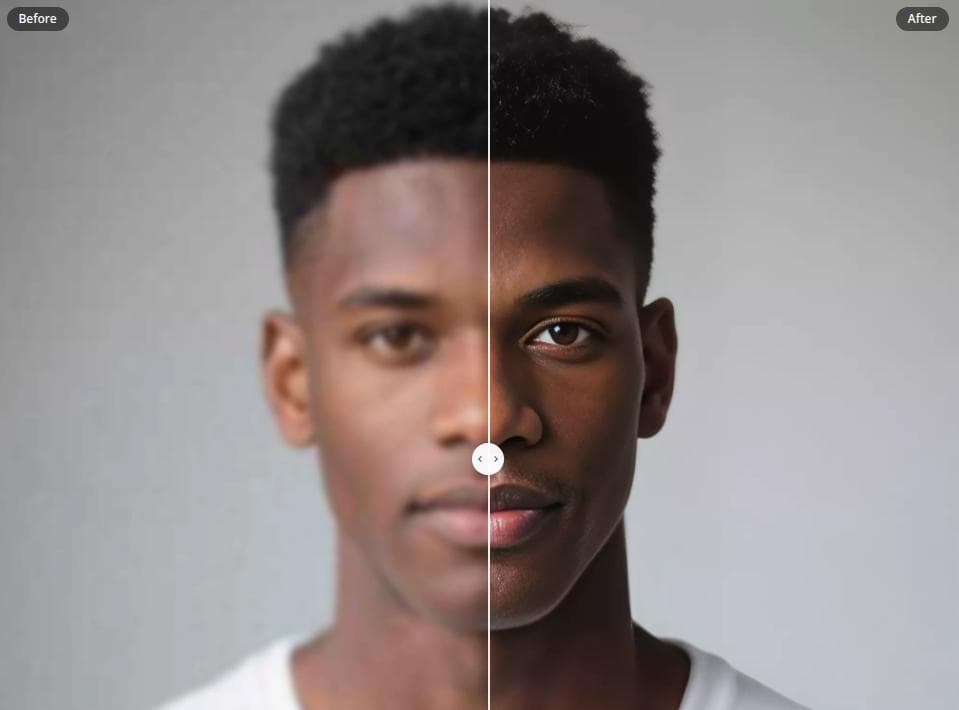
Face Upscaler: Why Some Blurry Faces Need Face Enhancement
Regular AI upscaling can make a photo larger, but very blurry faces often need dedicated face restoration. Learn when to use ResLeap's Face Enhancement.
A regular AI upscaler can make a photo larger and cleaner, but it does not always fix a blurry face. Sometimes the background becomes sharper, the clothes look better, and the overall image feels improved, while the person's face still looks soft or hard to recognize.
That usually means the problem is not just resolution. A very blurry face may be missing structure: the eyes are unclear, the mouth shape is gone, or the face contour has been softened by motion blur, compression, or an old low-quality camera. In that case, a normal upscaler may only make the blur bigger.
This is where Face Enhancement in ResLeap AI Image Enhancer helps. It uses a dedicated face restoration process, so the tool can focus on rebuilding facial details instead of only enlarging the whole image.
What Is a Face Upscaler?
A face upscaler is a tool for improving portraits, profile photos, old family pictures, selfies, and cropped group photos. The goal is simple: make the image larger while keeping the face clear.
But there are two different jobs hidden inside that goal. Regular upscaling increases the size of the full image. Face enhancement focuses on the facial area itself, including eyes, nose, lips, skin texture, hairline, and face shape.
If the face is already readable, regular upscaling may be enough. If the face is the blurry part, face enhancement matters much more.
Why Regular Upscaling Can Fail on Blurry Faces
Regular upscaling works best when the source image still has enough information. A small but clear selfie is a good example. The face is already recognizable, so increasing the resolution can make it look cleaner without changing much.
A heavily blurred face is different. There may not be enough detail for the upscaler to preserve. It can sharpen nearby texture or improve the background, but the face may still look unclear because the original facial structure was not there to begin with.
A quick sign: if the image looks sharper after upscaling but the face still does not, the issue is probably face restoration, not just image size.
What Face Enhancement Does Differently
Face Enhancement treats the face as the most important part of the image. Instead of only improving general texture, it looks for the details that make a person recognizable: eyes, nose, lips, skin texture, hairline, and face contour.
It is especially useful for photos from old phones, compressed chat images, small profile photos, and portraits cropped from group pictures. These images often have enough information to suggest a face, but not enough for a normal upscaler to make it clear.
There are still limits. If a face is extremely tiny or almost completely hidden, no tool can restore it perfectly. But for many blurry or compressed portraits, dedicated face restoration gives the model a much better starting point.
Enable Face Enhancement when:
- The eyes, mouth, or nose are hard to see.
- The face is small in the original image.
- The photo is old, compressed, noisy, or motion blurred.
- A portrait looks sharper overall, but the face still looks unclear.
- You want to unblur a face or restore more natural facial details.
How ResLeap Helps With Blurry Faces
ResLeap AI Image Enhancer includes Face Enhancement directly in the image enhancement workflow. You do not need to use a separate face repair tool first.
When you turn it on, ResLeap gives extra attention to the face and uses a specialized restoration step before producing the final enhanced image. This is helpful when the whole image needs higher resolution, but the face also needs structural repair.
When Regular Upscaling Is Still Enough
You do not need Face Enhancement for every image. If the face is already clear, regular upscaling may be the better choice because it keeps the result closer to the original.
Use regular upscaling when:
- The face is already recognizable.
- The photo is only slightly soft or small.
- You want to improve the whole image, not only the person.
- Faces are not the main subject.
- You want to keep the result as close as possible to the original.
Turn on Face Enhancement when the face is the reason you are improving the image. It is a good choice for:
- Blurry portraits.
- Old family photos.
- Low-resolution profile pictures.
- Faces cropped from group photos.
- Compressed images saved from messaging apps.
- Portraits where the background improves but the face does not.
The simplest rule: if the face is already readable, start with regular upscaling. If the face is hard to recognize, enable Face Enhancement.
How to Use Face Enhancement in ResLeap
You can use this workflow in ResLeap:
- Open ResLeap AI Image Enhancer.
- Choose an upscale level, such as Auto, 2x, or 4x.
- Enable Face Enhancement if the face is blurry or important.
- Upload your portrait, selfie, old photo, or group photo.
- Process the image and review the result.
- Download the enhanced image.
If your first result looks good overall but the face still needs more clarity, run it again with Face Enhancement enabled. That tells ResLeap to focus on the facial area instead of treating every part of the image the same way.
Quick Checklist
Use regular AI upscaling if:
- The face is already recognizable.
- The image only needs higher resolution.
- You want to keep the full photo natural.
- The main problem is image size, not facial blur.
Use Face Enhancement if:
- The face is blurry, compressed, or low quality.
- Facial features are hard to see.
- The portrait is the main focus of the image.
- Regular upscaling improves the image but not the face.
Final Thoughts
The best face upscaler is not always the one that simply makes an image larger. For clear faces, regular upscaling can be enough. For very blurry faces, the key problem is often missing facial structure.
That is what Face Enhancement is for. ResLeap combines image upscaling with dedicated face restoration, so you can improve the whole photo while giving blurry faces the extra repair they need.
Ready to improve a portrait photo? Try ResLeap AI Image Enhancer and turn on Face Enhancement when the original face is too blurry for normal upscaling alone.

Newsletter
Join the community
Subscribe to our newsletter for the latest news and updates